MScopesPro for USB Camera
ZyeproVideo Players & Editors
3.873.00 Reviews
- Version
- 35.150
- Installs
- 10.00K
- Age Rating
- Everyone
Screenshots
Our Review of MScopesPro for USB Camera
 Analysis by Appyee
I’d start by asking what you want your phone to do with a USB camera. If you mainly need to view a live feed, the camera’s own companion app or a simple viewer may be enough. If you want to capture and adjust images or record video from an attached microscope, webcam, or endoscope, MScopesPro for USB Camera is aimed at that more hands-on kind of use. I see its appeal less as an all-purpose video editor and more as a practical capture tool for inspecting things up close.
That distinction matters before you pay for it. The app costs $4.49, so I’d want a clear use for its controls rather than download it just to experiment once. It is rated for Everyone, has been around since December 20, 2015, and its current version is 35.150. Those details make it an established, paid option, but they don’t tell you whether your particular camera will work smoothly; compatibility between the phone, camera, and any required connection hardware is still the first thing I’d check.
Choose it for a camera-based workflow
The strongest reason to consider this app is that it brings viewing and capture together. Instead of treating a USB camera as an accessory you can only look through, it gives you a place to save images and make recordings. That can be useful for a hobbyist documenting a specimen, someone checking a small repair, or a student keeping a visual record of an observation. The value is in being able to return to what you saw, not just in magnifying it once.
A useful habit is to decide what you need to preserve before you begin. For a still image, take a moment to steady the camera and set the light and exposure first; a sharp, well-lit frame is more useful than a hurried close-up. For a moving subject or a process that changes, recording may be a better choice. This small bit of preparation can matter more than trying to fix a poor capture afterward.
Where it stands against other options
Compared with a basic camera viewer, a dedicated USB-camera app makes more sense when you want capture controls and adjustments in the same session. Compared with a general-purpose editor, it is better suited to the point where you are looking through the external camera; an editor is often the better next step if your main goal is polishing clips, adding titles, or assembling a finished video. I would not choose this as a replacement for a full editing suite.
It also isn’t automatically the right choice for every USB camera. Before relying on it for a class, repair, or inspection, connect the setup at home and test the camera with the lighting you expect to use. That quick trial helps expose practical snags—such as an awkward cable position or a camera that needs a different connection arrangement—before the moment when you need a dependable recording.
Small checks that make a difference
For close-up work, I’d treat brightness, contrast, white balance, and exposure as a sequence rather than changing everything at once. Make one adjustment, check whether the detail you care about becomes clearer, then move on. Filters can help a view stand out, but they can also change how a subject appears, so I’d keep an unfiltered capture when accurate color or texture matters.
Likewise, don’t assume a measurement shown on screen is automatically a reliable physical measurement. If you plan to use the measurement tool for a DIY task or inspection, compare it with an object of known size under the same camera setup. That gives you a practical check before using the reading to make a cut, fit a part, or judge whether something has changed. For casual comparison, the tool may be useful even when exact measurement is not the goal.
A realistic example is checking a small component at a workbench. I’d connect the USB camera, arrange the cable so it won’t tug the view out of place, adjust the image under the room’s actual lighting, and capture a still before handling the component. If I needed to show how a moving part behaves, I’d record that separately. Keeping those captures distinct makes it easier to compare a clean reference image with a video of the process.
Who should look elsewhere
I’d skip this app if you don’t already have a compatible USB camera or have no recurring reason to use one. The app can’t make an unsuitable camera useful on its own, and buying it before checking the connection path risks paying for something that doesn’t fit your setup. People who only want to film with their phone’s built-in camera will usually be better served by the phone’s standard camera app.
It may also be a poor fit if your priority is producing a finished video rather than capturing what the external camera sees. In that case, a separate editor is a more natural tool for trimming, arranging, and presenting footage. And if you need a measurement for a safety-critical or highly precise task, verify it with an appropriate measuring instrument instead of relying on an on-screen estimate.
The app comes from Zyepro, and its audience appears to be a focused one: it has 10K+ installs, an average rating of 3.8 from 408 ratings, and 73 written reviews. I’d read that as a sign to judge it against your own camera and workflow, rather than assume it will be a universal plug-and-play solution. Its focused purpose is a strength when it matches your equipment, but setup fit remains part of the decision.
Getting Started with MScopesPro
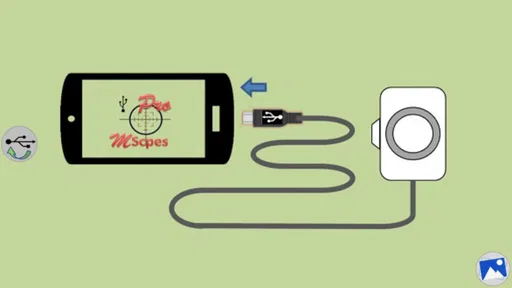
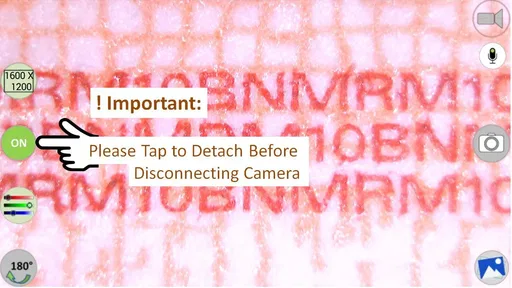
First things first, let’s talk about setup. MScopesPro for USB Camera is available on both Android and iOS, so no matter your device, you’re in luck. Once you’ve downloaded it, you’ll need to connect a compatible USB camera. I used a standard USB microscope, and the connection process was pretty seamless. Just plug it in, and the app takes over from there.
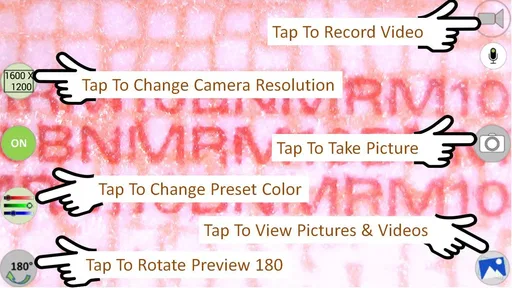
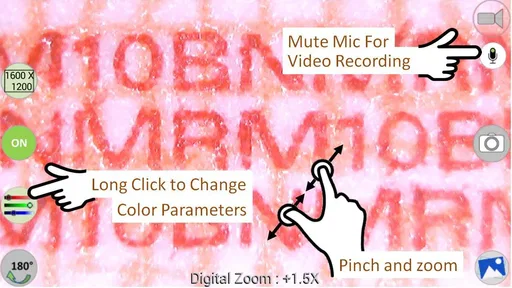
The interface is pretty user-friendly. You’re greeted with a clear menu that’s easy to navigate, which is great because who wants to spend time figuring out where everything is, right? You can quickly access settings, capture images, and record videos, all from the main screen.
Exploring the Features
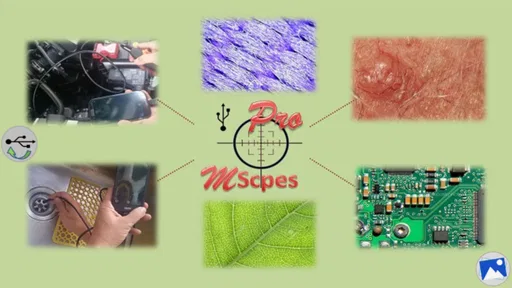
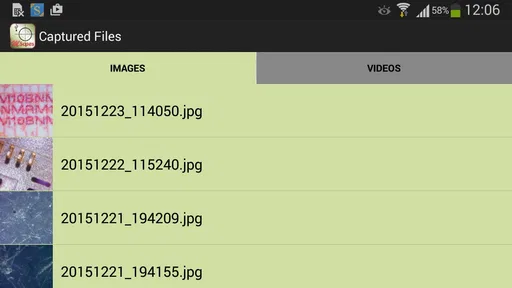
Now, onto the fun stuff—features! This app is packed with tools that make it a joy to use. One of my favorites is the image capturing capability. You can snap high-res images with just a tap, and let me tell you, the detail is incredible. Whether you’re looking at tiny insects or intricate plant structures, the clarity is spot on.
But wait, there’s more! Video recording is another highlight. You can record directly from your USB camera, and the app supports different resolutions and frame rates. This is perfect if you want to document your findings or create cool time-lapse videos.
Another nifty feature is the zoom function. With a simple pinch, you can zoom in and out, making it super easy to focus on exactly what you want to see. Plus, there’s a measurement tool that lets you size up objects on the screen. I found this particularly useful for my DIY projects where precision is key.
Customization and Controls
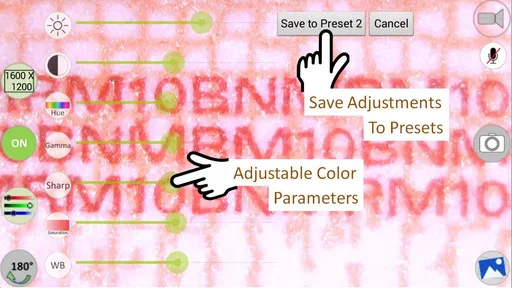
Customization is where MScopesPro truly shines. You can adjust brightness, contrast, and even apply filters to enhance your images. The controls are intuitive and responsive, so you’re never fumbling around trying to get the perfect shot.
For those who love a bit of extra control, there’s an option to adjust the white balance and exposure manually. This is a lifesaver when you’re dealing with tricky lighting conditions. I experimented with a few different settings, and the results were consistently impressive.
Performance and Usability
In terms of performance, the app runs smoothly. I didn’t experience any lag or crashes, which is always a relief. The developers have done a great job optimizing it for different devices, so whether you’re on a high-end smartphone or a basic tablet, it should work just fine.
Usability-wise, the app is straightforward enough for beginners but has enough depth for more advanced users. I appreciate how the developers have managed to strike this balance. It means you’re not overwhelmed with options, but you still have the tools you need to get creative.
Final Thoughts
Overall, if you’re in the market for a solid app to pair with your USB camera, it’s definitely worth checking out. It’s packed with features that cater to both casual hobbyists and serious enthusiasts alike. The ease of use, combined with powerful customization options, makes it a standout choice.
So, why not give it a shot? You might just find yourself seeing the world in a whole new way. Happy exploring!
Make the switch only if the workflow fits
If you already use another app with your USB camera, I’d compare the everyday steps rather than just counting features. Can you get a live view, adjust the image, save a still, and start a recording without repeatedly disconnecting or changing tools? If your current setup handles those steps reliably, switching may add little. If you routinely move between a viewer and separate capture controls, having those tasks together could make a session simpler.
There is also a small learning cost in changing tools. Before an important inspection, I’d make a short test capture, locate where the resulting files go, and check that the image looks as expected outside the live preview. That last check is easy to overlook: a view that looks clear while you are watching does not automatically guarantee that the saved still is the one you need. A quick playback or review avoids discovering a problem after you have packed away the camera.
For a microscope used at a desk, I’d keep the phone or tablet on a stable surface and avoid touching the screen while capturing whenever possible. At high magnification, a small bump can shift the subject enough to make a comparison frustrating. If the camera is mounted or held separately, arrange the cable first, then frame the target. This is a practical advantage of planning the setup before opening the capture controls: you spend less time chasing a moving image.
What I would test before depending on it
First, try the exact camera and device combination you plan to use. A USB connection can involve more than simply attaching a plug, so check that the physical connection is secure and that the live image appears before you build a workflow around it. Next, test the camera’s focus and lighting on the actual subject. An app can offer image adjustments, but those controls cannot compensate for a camera that cannot focus at the required distance or a scene that is poorly lit.
I’d also make a short recording and review it from beginning to end. This helps answer a very practical question: does the footage preserve the detail and motion you need, or is a sequence of still images more useful? For documenting a stationary specimen, stills are often easier to compare and share. For a moving mechanism, a recording can preserve the order of events that one snapshot would miss. Choosing the capture type deliberately makes the app more useful than simply recording everything by default.
When comparing observations over time, keep the camera position and lighting as consistent as you can. Otherwise, a change in angle or brightness may look like a change in the object itself. I’d save a reference image before adjusting the view for a new angle, and note the conditions in whatever way suits the project. That matters for plant growth, small repairs, or repeated checks where the point is to see what changed rather than just collect attractive close-ups.
My recommendation for the right buyer
For someone who regularly uses a compatible USB microscope, endoscope, or webcam and wants to capture what it shows, this is a focused option worth considering. Its mix of still capture, video, zoom, and image controls is more relevant to that job than the broader editing features people expect from a general video app. I’d especially consider it for hobby observation, visual notes during a repair, or demonstrations where the external camera—not the phone lens—is the important part.
For occasional curiosity, the cost may be harder to justify. If you only need to inspect something once, first see whether the camera already works with a tool you own. If you need polished clips, choose an editor designed around post-production. If exact measurements matter, use a calibrated approach suited to the task. Those are not faults so much as different needs, and being clear about them helps avoid buying a specialized app for a job it was not meant to do.
My bottom line is simple: check your hardware first, then decide whether you will use the capture and adjustment workflow often enough to make the purchase worthwhile. When the camera is compatible and the goal is documenting close-up views, the app can make a phone or tablet a handy part of the workbench. When either the equipment or the task points elsewhere, a basic viewer, the built-in camera, or a dedicated editor may be the more sensible choice.
Verdict
Strengths of MScopesPro for USB Camera
- Supports multiple USB camera models.
- High-resolution image support.
- User-friendly interface.
- Real-time image adjustments.
- Affordable one-time purchase.
Limitations of MScopesPro for USB Camera
- Limited advanced editing tools.
- Occasional connectivity issues.
- No cloud storage integration.
- Requires OTG support on devices.
- Interface can feel outdated.
Similar Picks in This Category
View All
Google TV
Google LLC3.9

iTunes
Apple4.7

YouTube
Google LLC3.8

MX Player
Amazon Mobile LLC4.2

CapCut - Video Editor
Bytedance Pte. Ltd.3.5

PLAYit-All in One Video Player
PLAYIT TECHNOLOGY PTE. LTD.4.5
Frequently Asked Questions
What is MScopesPro for USB Camera used for?
MScopesPro for USB Camera is an application designed to connect and display real-time footage from USB-connected microscopes on your Android or iOS device. This app is ideal for educational purposes, scientific research, or any hobby that requires close-up inspection, providing a portable and convenient way to analyze small objects.
Does MScopesPro for USB Camera support all USB microscopes?
While MScopesPro supports a wide range of USB microscopes, compatibility may vary based on the device's operating system and the microscope's specifications. It's recommended to check the app's official website or user reviews to ensure your specific model is supported before purchasing or downloading the app.
What features does MScopesPro offer?
MScopesPro offers features such as high-resolution image and video capture, zoom controls, and adjustable focus settings. It also provides options for adjusting brightness and contrast, allowing users to customize their viewing experience. The app supports both still images and video recording, making it versatile for various uses.
How user-friendly is MScopesPro for beginners?
MScopesPro is designed to be user-friendly, with an intuitive interface that guides users through the setup and usage processes. It includes clear instructions and tooltips to assist beginners. However, some technical understanding of USB connections and microscope usage may enhance the user experience.
Are there any in-app purchases or subscriptions required?
MScopesPro may include optional in-app purchases for additional features or enhanced functionality. It's advisable to review the app's pricing model on the app store to understand any potential costs. Basic functionality is typically available without extra charges, but enhancements might require payment.
